
Subnautica stores your saves in a different place depending on where you bought it, and neither one is where you’d guess (nowhere near your Documents folder). Below is the exact folder for each store, plus where your screenshots actually end up.
Steam save location
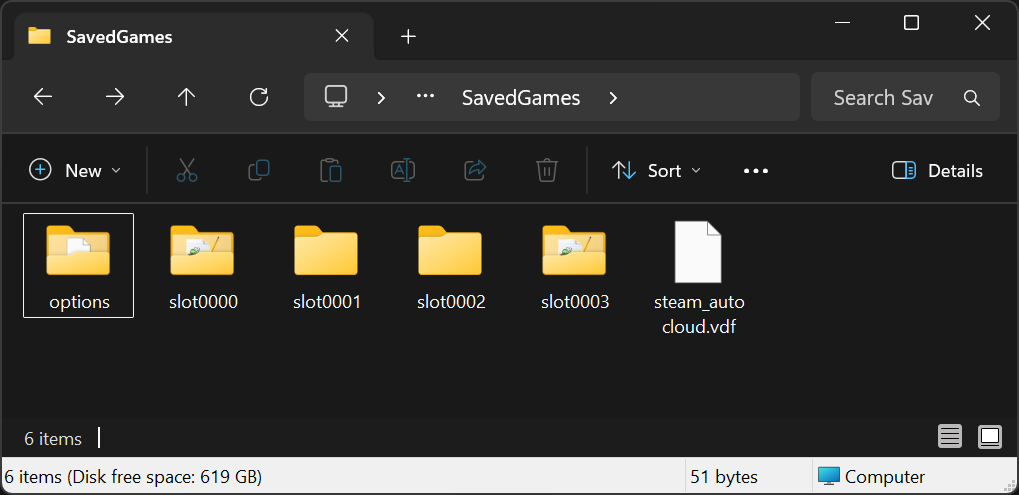
On Steam, saves sit inside the game’s own install folder. The default path is:
C:Program Files (x86)SteamsteamappscommonSubnauticaSNAppDataSavedGamesIf you installed Steam on another drive, follow your own library path to ...steamappscommonSubnauticaSNAppDataSavedGames instead.
Epic Games save location
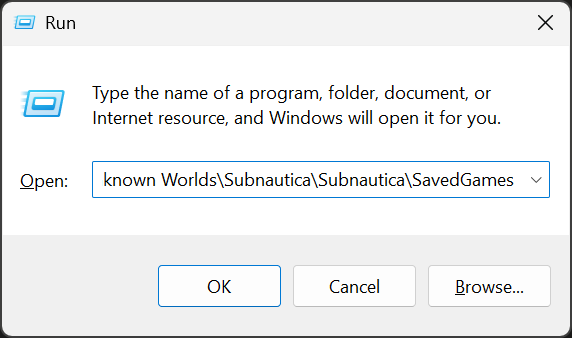
The Epic version tucks saves under your Windows user profile instead:
C:Users<YourName>AppDataLocalLowUnknown WorldsSubnauticaSubnauticaSavedGamesAppData is hidden by default, so the fastest way in is to press Win + R, paste %AppData%..LocalLowUnknown WorldsSubnauticaSubnauticaSavedGames, and hit Enter.
Which folder is your save?
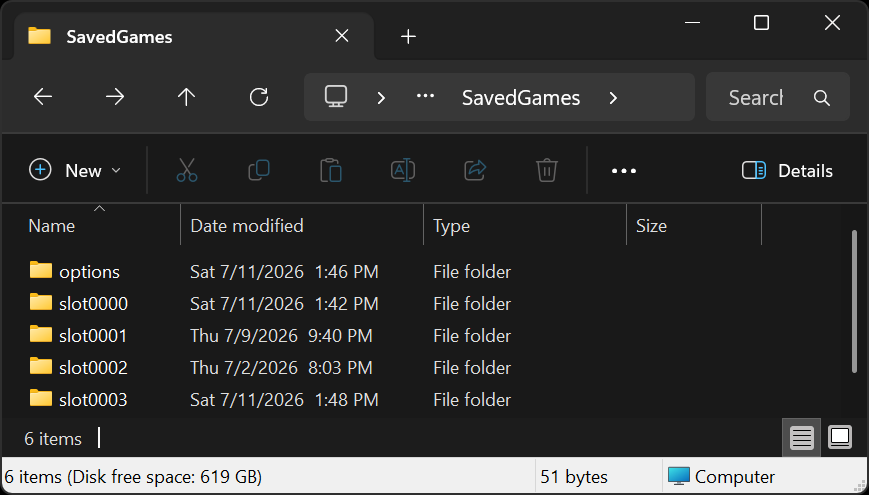
Inside SavedGames you’ll find one folder per save, named slot0000, slot0001, and so on. They aren’t labeled with the save name you see in-game, so the reliable way to pick the right one is the Date Modified column: the most recently changed slot is your latest game. To back a save up, grab the whole slotXXXX folder.
Where your screenshots go
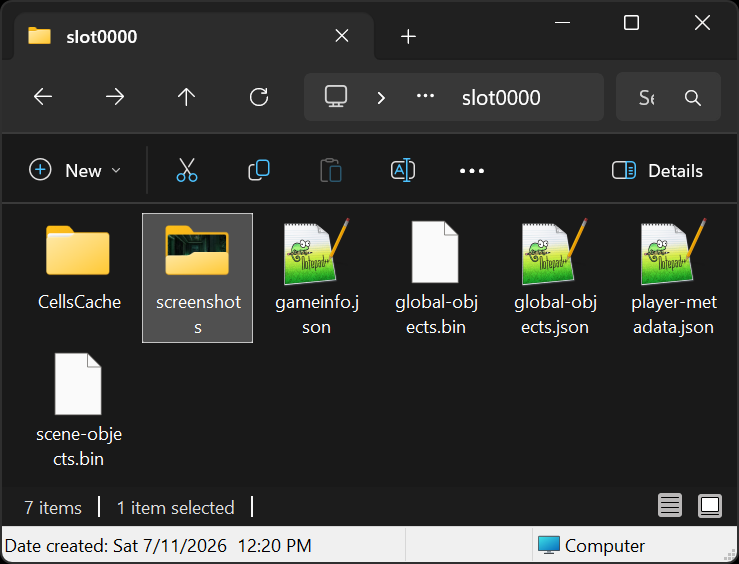
The screenshots you take with the in-game key don’t land in your Pictures folder. They live inside the save they belong to: open the matching slotXXXX folder and look for a screenshots subfolder. (If you used Steam’s overlay screenshot key instead, those go to Steam’s own userdata folder, not here.)
Backing up and moving your saves
Copy the whole SavedGames folder somewhere safe before you install mods or let a big update through. That one copy is the difference between a bad patch costing you an afternoon and costing you your entire run.
Moving to a new PC is the same copy in reverse, dropped into the matching store’s folder (Steam path to Steam, Epic to Epic). You can even hand a slotXXXX folder to a friend and they’ll be able to load your world.